 Klavia
Import your sheet music into Klavia for Android.
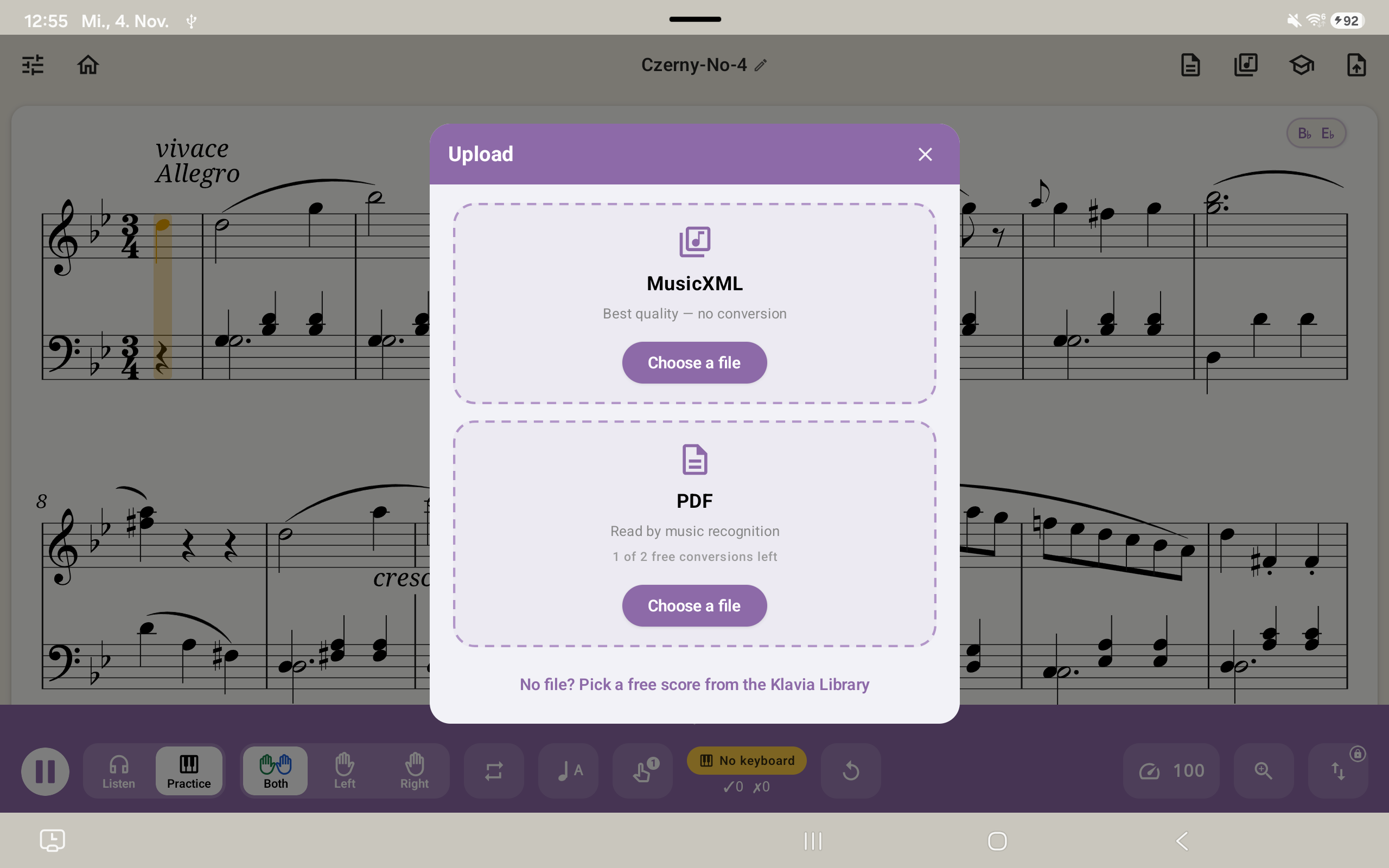
Choose a MusicXML score for a direct import, or choose a PDF to have Klavia read the printed notation. This guide follows the Android tablet screens; the app interface in the screenshots is shown in English.
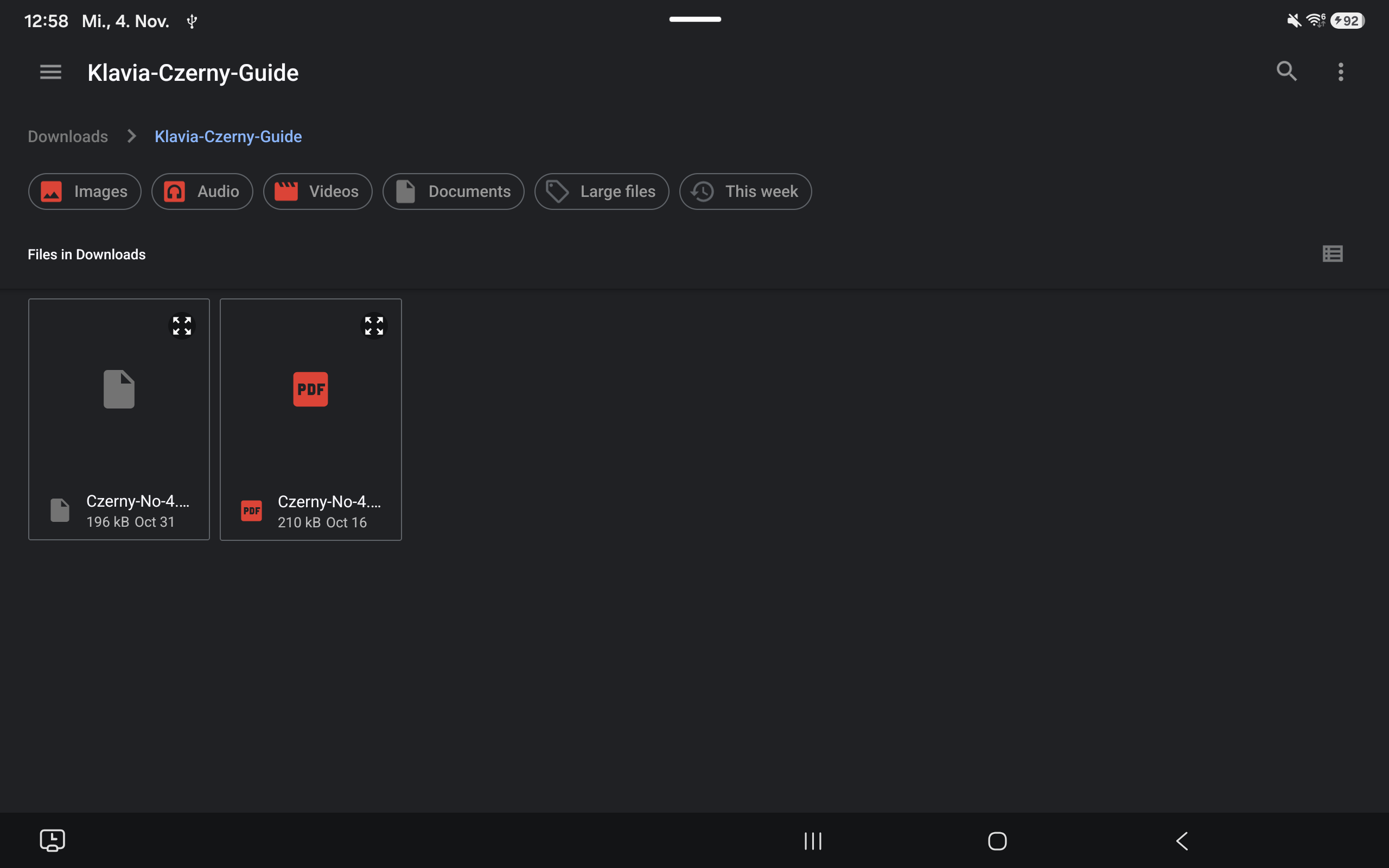
The walkthrough uses Carl Czerny’s 50 Melodische Übungsstücke, No. 4. Its PDF and MusicXML files are named Czerny-No-4.pdf and Czerny-No-4.musicxml in the screenshots; choose your own score in the same way.
1. Open the import choices
If a score is already open, use the import-file icon at the upper right.
From the main screen, tap Add (English: Add). The import sheet offers two routes: MusicXML, which reads the notation file directly without OMR conversion, and PDF, which uses optical music recognition (OMR) to read the score.
2. Import a MusicXML score
- In the import sheet, choose MusicXML.
- In the Android file picker, open Downloads or the location where you saved the score. Cloud storage can also appear in the picker if its app provides files.
- Choose a file ending in
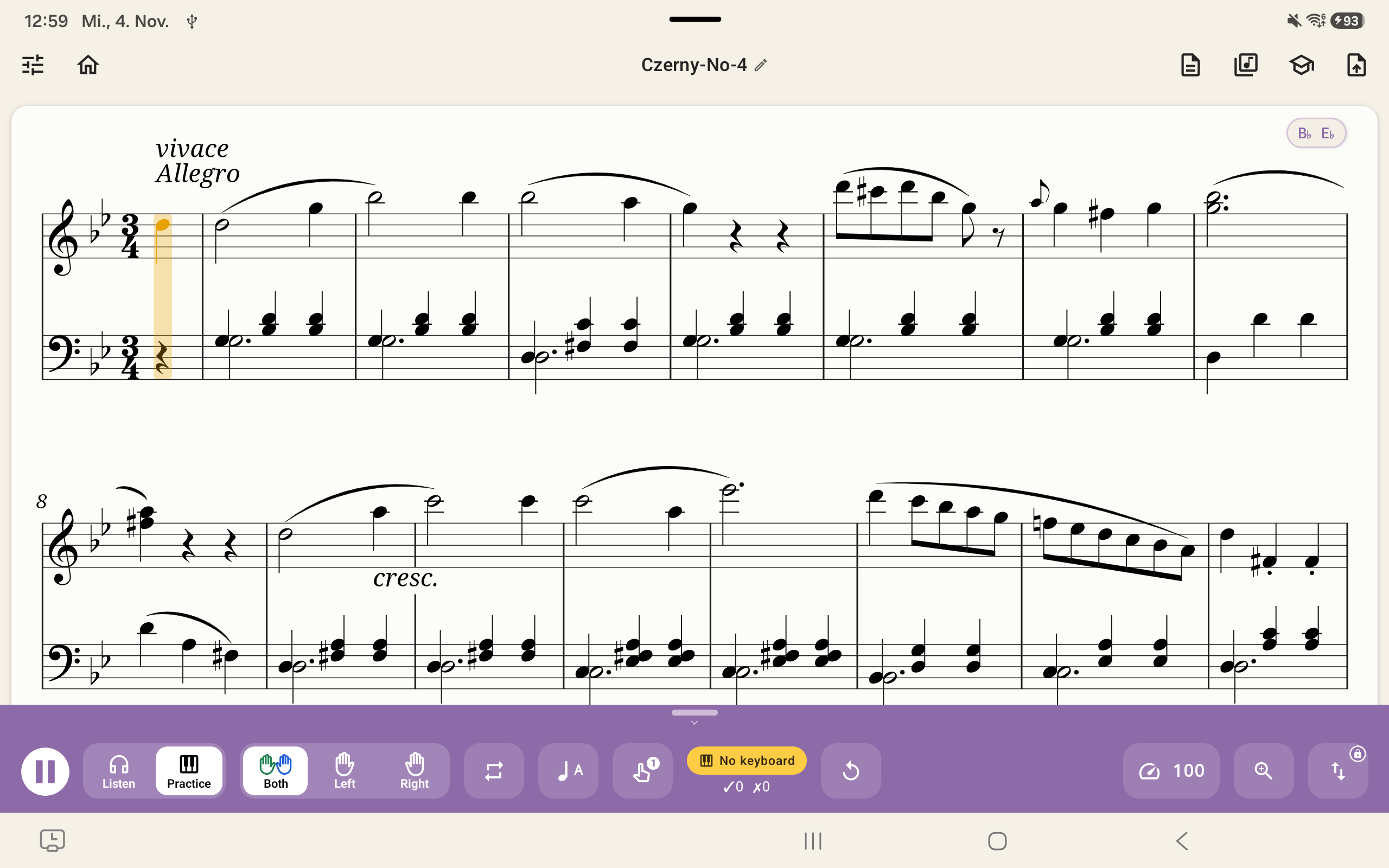
.musicxml,.xml, or.mxl. An arbitrary XML file is not necessarily MusicXML. This route reads the score directly; it does not run PDF/OMR conversion. - Klavia opens the score when it has been read and saves it to your library automatically.
3. Import and convert a PDF
- Open Add and choose PDF.
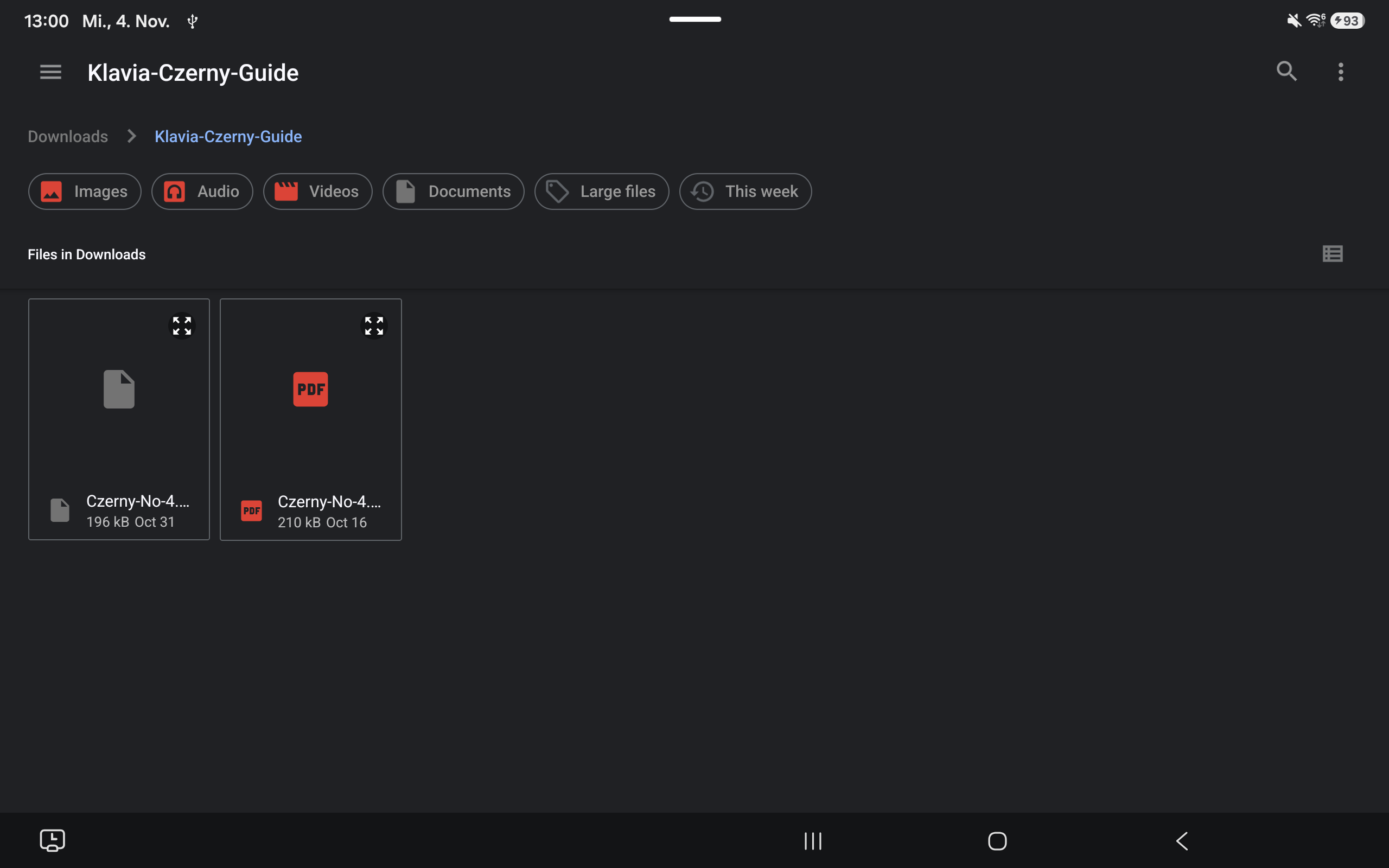
- Use the Android picker to find the PDF in Downloads or another available local or cloud location, then select it.
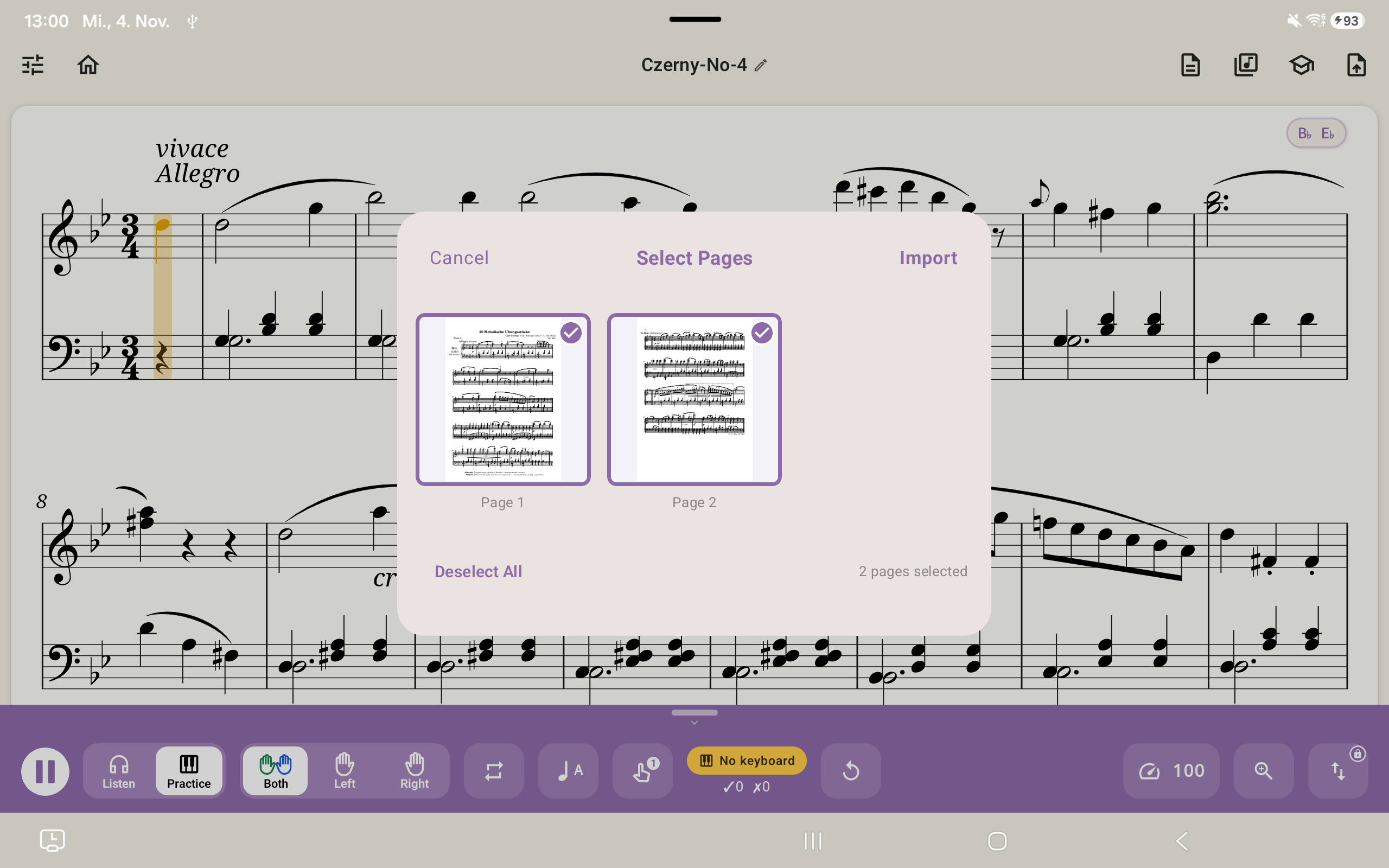
- For a multi-page PDF, select the pages you want and tap Import (Import in the English screenshots). A single-page PDF starts conversion directly after you select the file.
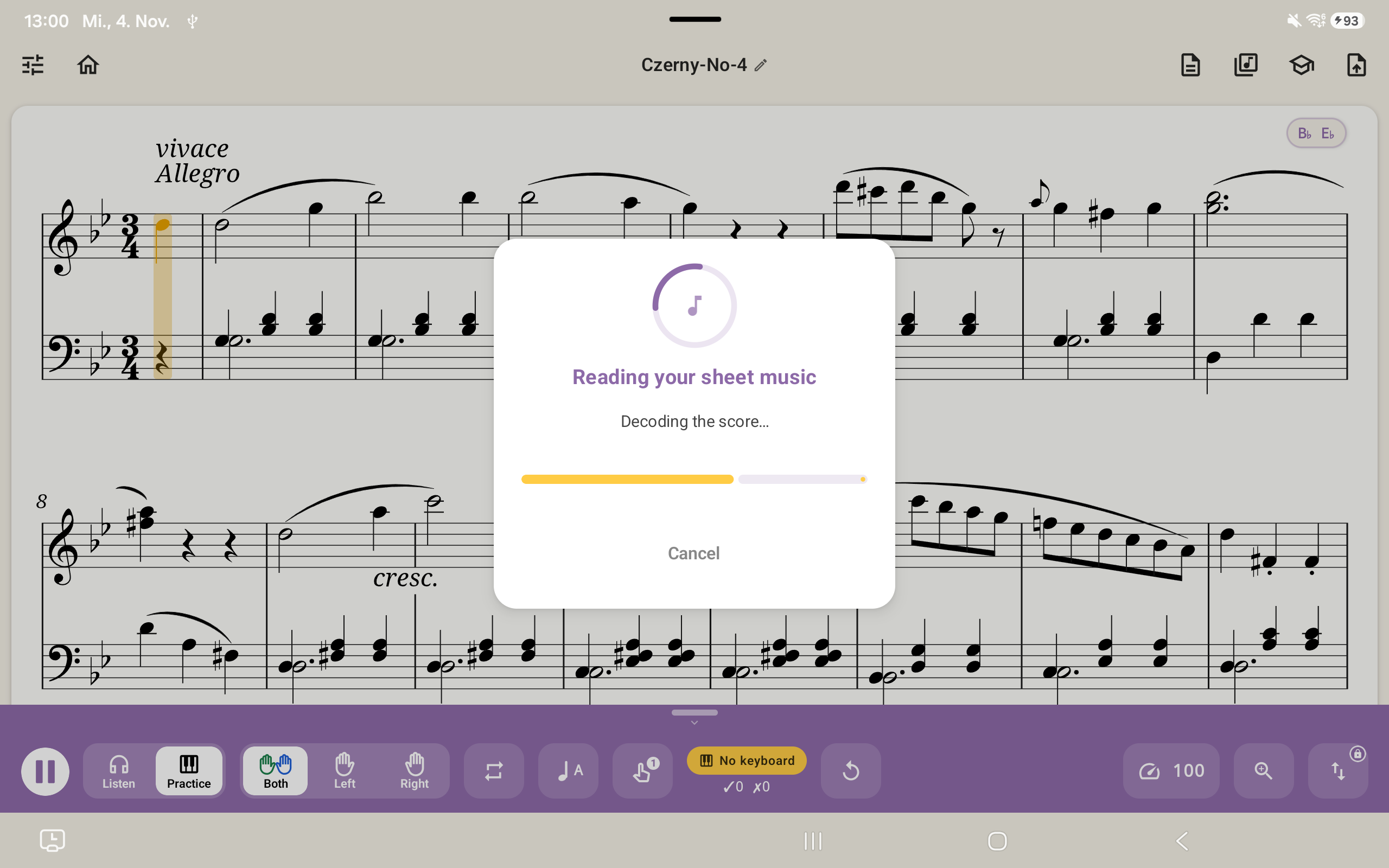
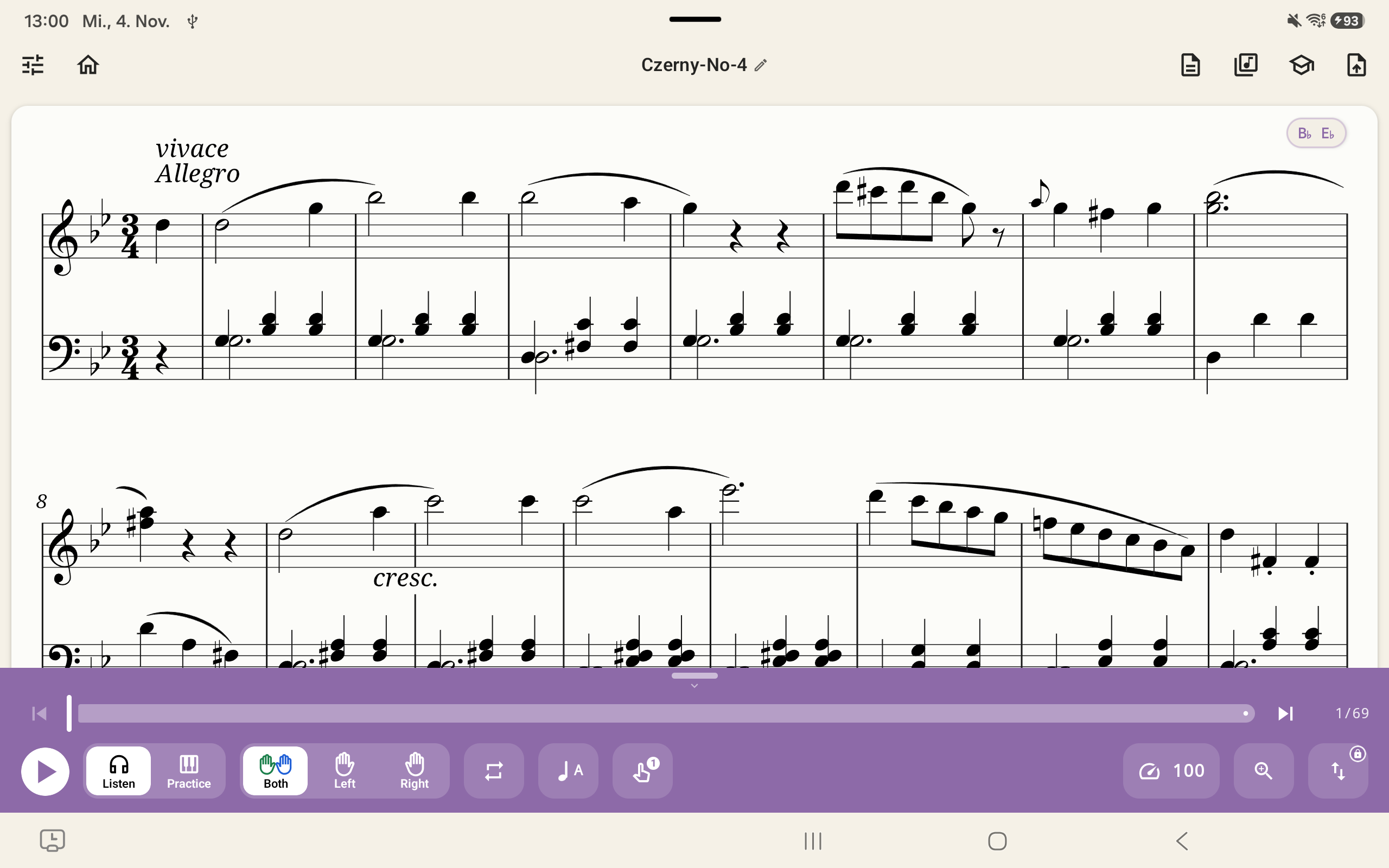
- Start conversion while connected to the internet. Wait while Klavia reads the selected pages. If conversion succeeds, the score opens and is saved to your library automatically. Recognition can make mistakes. Compare the result with the original; if it is inaccurate, try a clearer PDF or export a MusicXML version from your notation software.
If an error appears, note the code shown in the app. You can try again; if the problem continues, contact Klavia support and include the code.
4. Find the score in your library
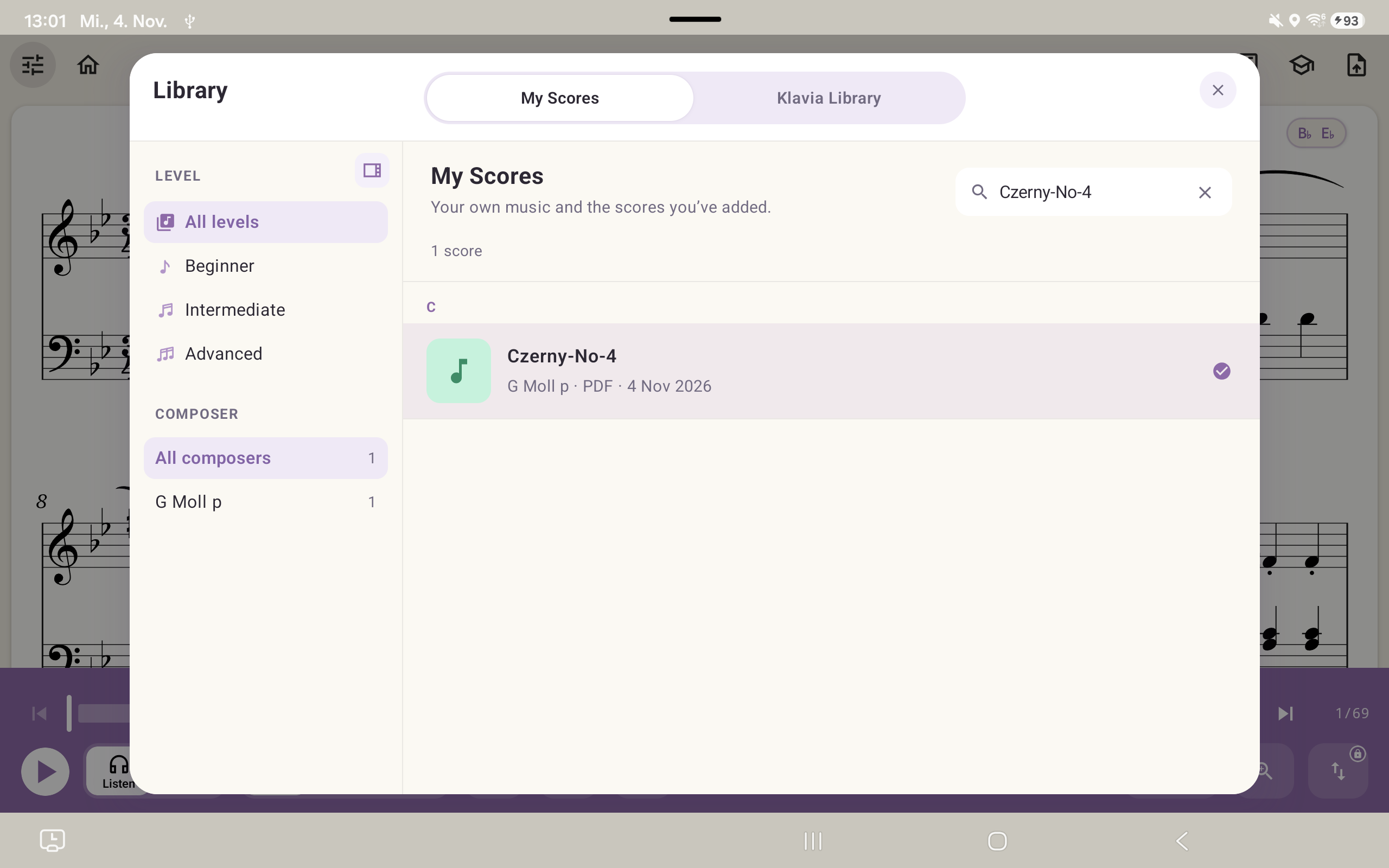
Imported scores are saved automatically. Open the library from the toolbar, select My Scores, and choose your piece. The Klavia Library tab is the catalogue, not your imported files. Use the search field if your list is long.
Questions about importing
Which MusicXML files can I import? ▾
.musicxml or .xml, or compressed MusicXML ending in .mxl. An arbitrary XML file is not necessarily a MusicXML score.