 Klavia
Import your sheet music into Klavia for iPad and iPhone.
Choose a MusicXML score for a direct import, choose a PDF to have Klavia read the printed notation, or scan a printed page with the camera. This guide follows the iPad screens; Klavia on iPhone uses the same Upload steps in landscape. The app interface in the screenshots is shown in English.
The walkthrough uses Carl Czerny’s 50 Melodische Übungsstücke, No. 4, the same piece as the Android guide. Its PDF and MusicXML files are named Czerny-No-4.pdf and Czerny-No-4.musicxml in the screenshots; choose your own score in the same way.
1. Open the import choices
If a score is already open, use the import-file icon at the upper right.
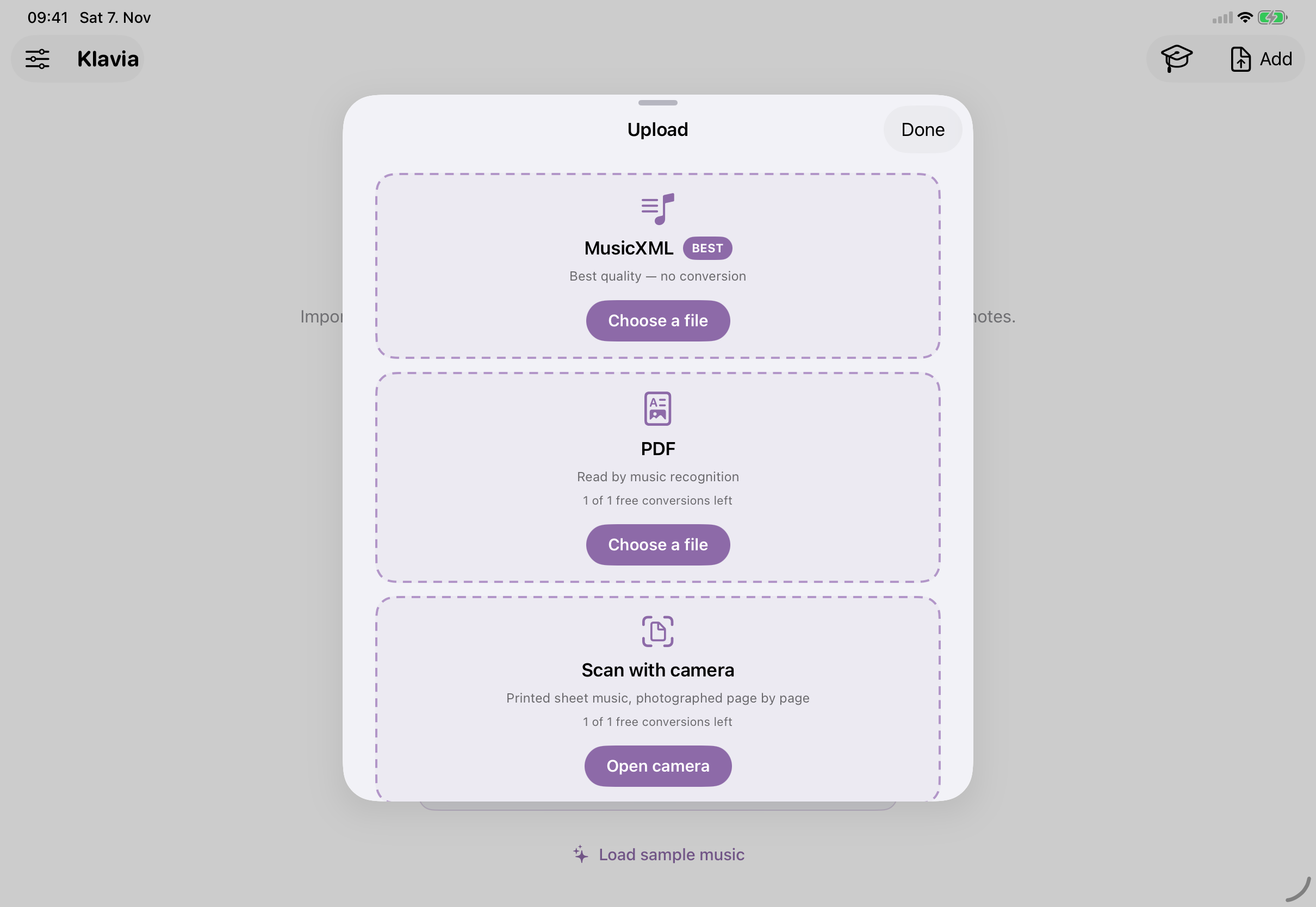
From Home, tap Add at the top right. The Upload sheet lists MusicXML, which reads the notation file directly without OMR conversion, and PDF, which uses optical music recognition (OMR) to read the printed score. Scan with camera photographs printed pages; see step 4.
2. Import a MusicXML score
- In the Upload sheet, tap Choose a file under MusicXML.
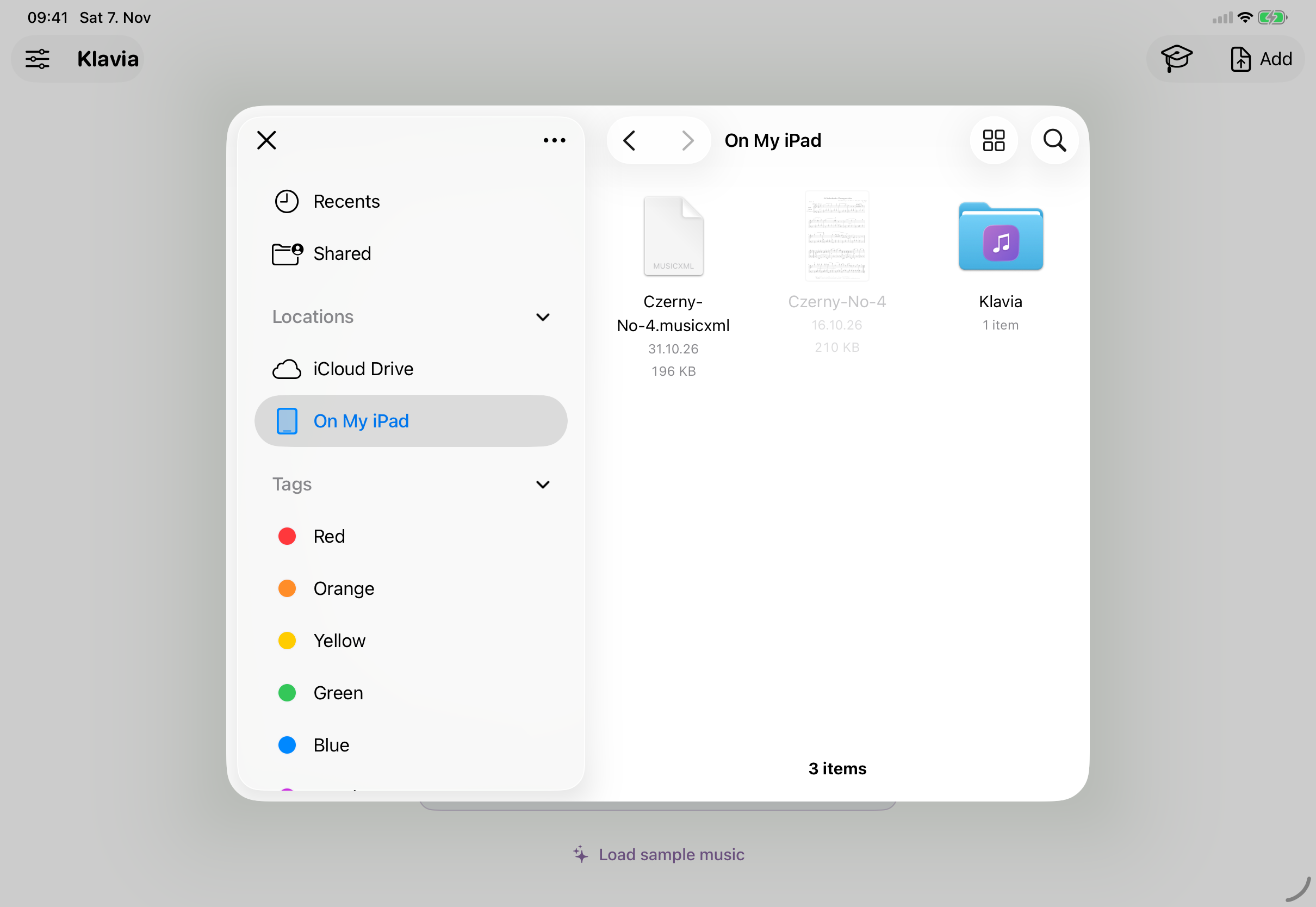
- In the iOS Files picker, open On My iPad, iCloud Drive or another location, then tap your score. Only MusicXML files can be selected here; other files, such as PDFs, are greyed out.
- Choose a file ending in
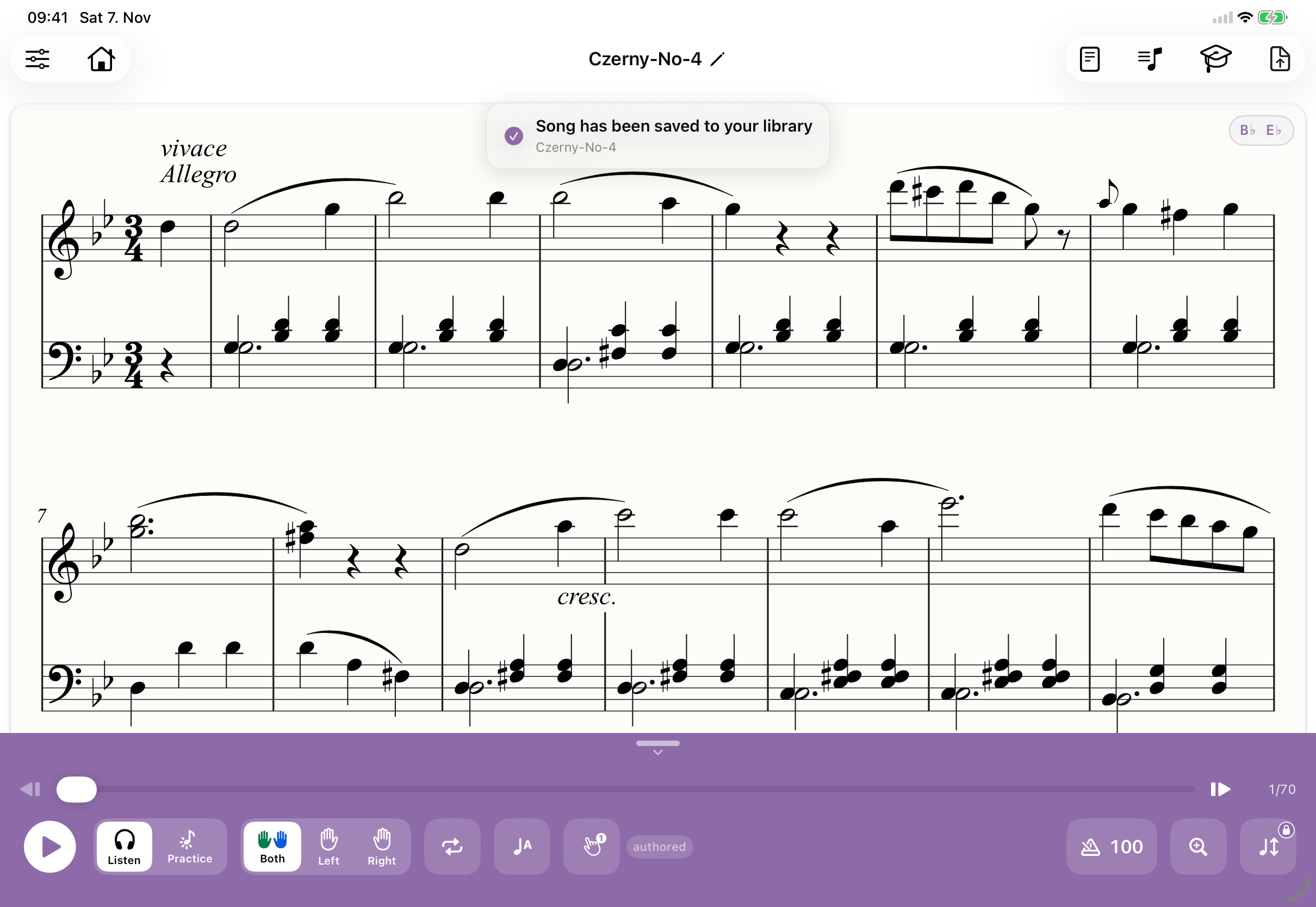
.musicxml,.xml, or.mxl. An arbitrary XML file is not necessarily MusicXML. This route reads the score directly; it does not run PDF/OMR conversion. - Klavia opens the score and saves it to your library automatically; “Song has been saved to your library” appears briefly.
3. Import and convert a PDF
- Open Add and tap Choose a file under PDF.
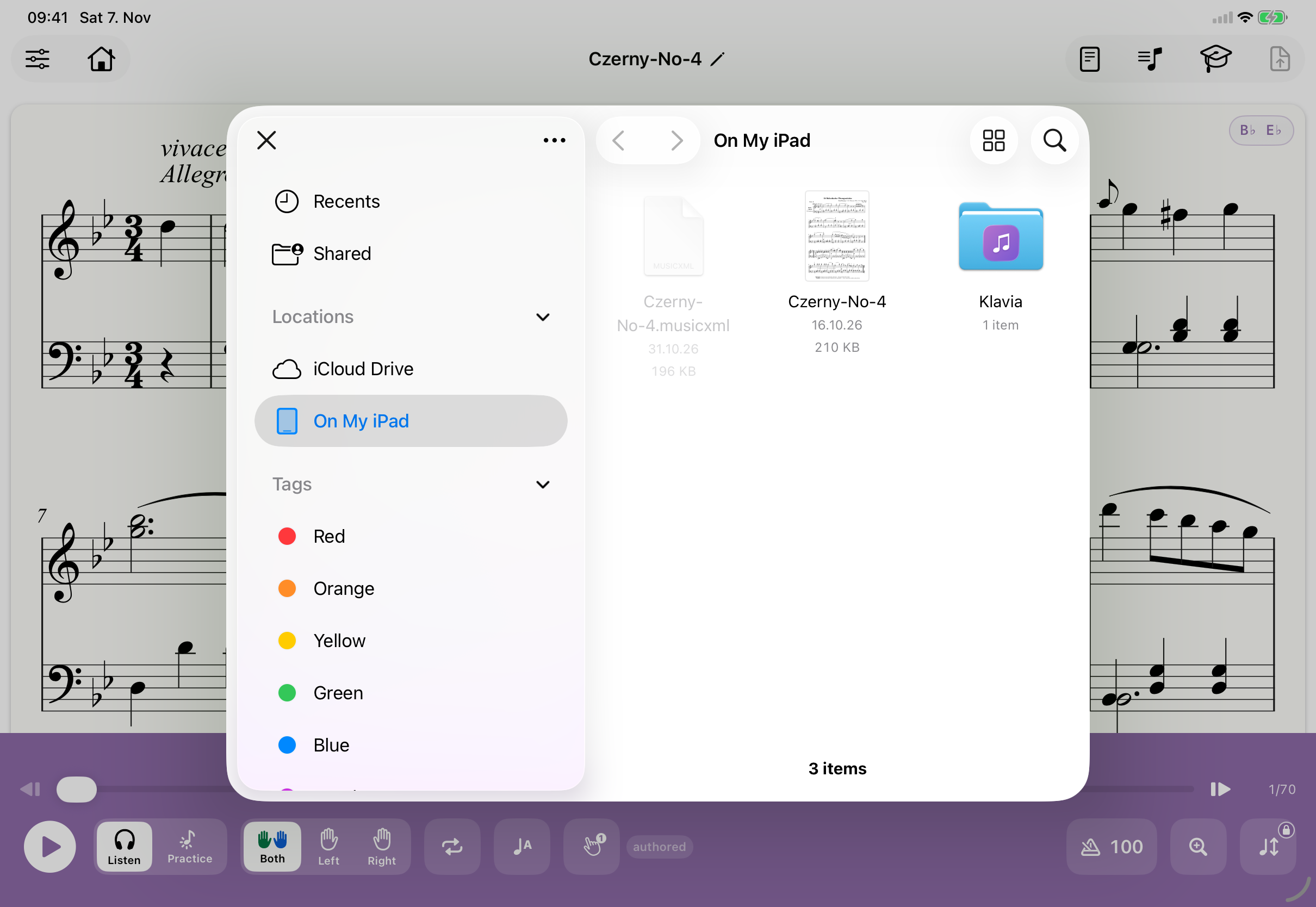
- In the Files picker, tap your PDF. Now only PDF files can be selected; the MusicXML file is greyed out.
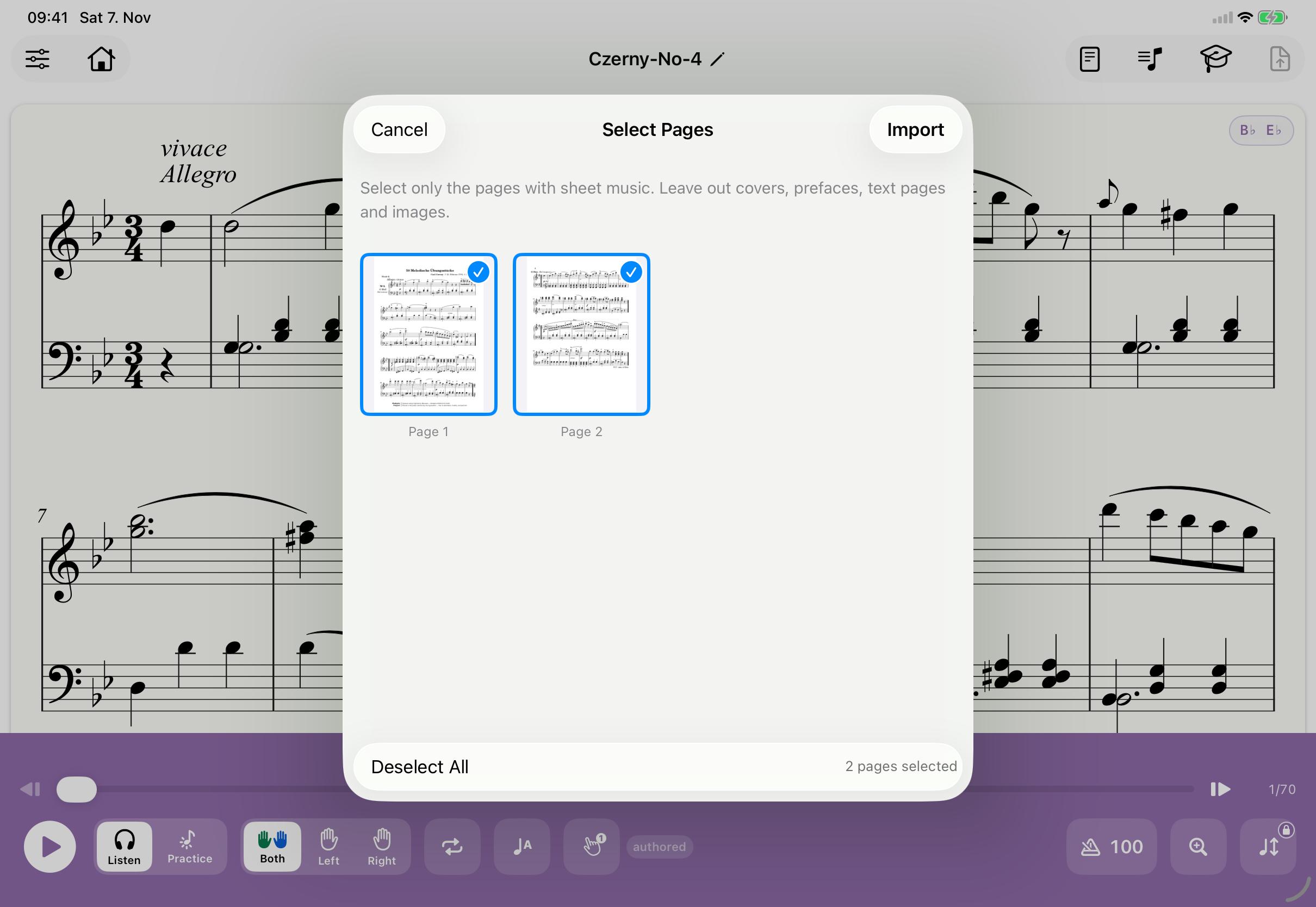
- For a multi-page PDF, Klavia shows Select Pages. All pages start selected; deselect covers, prefaces and text pages, then tap Import. A single-page PDF starts conversion directly after you choose the file.
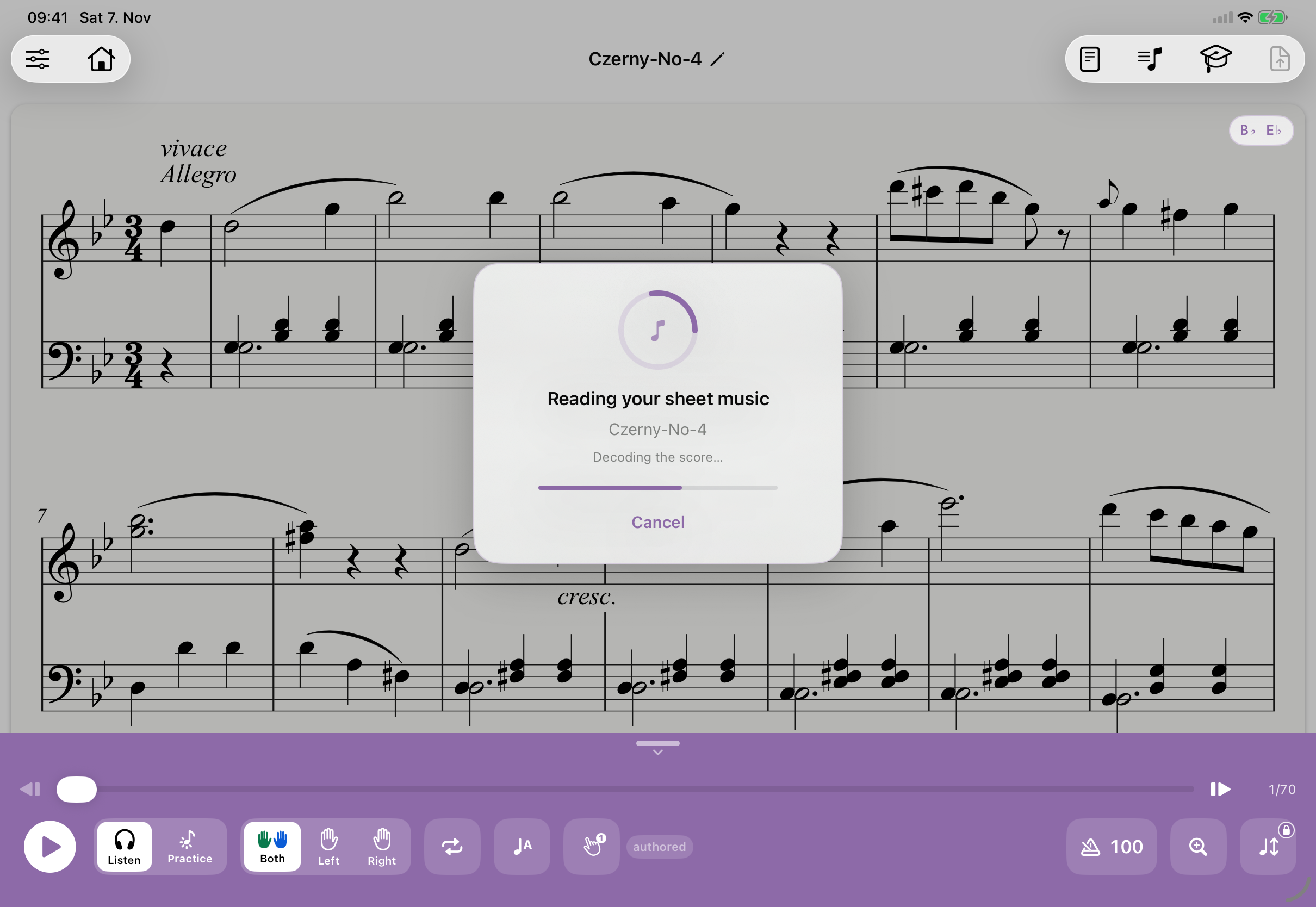
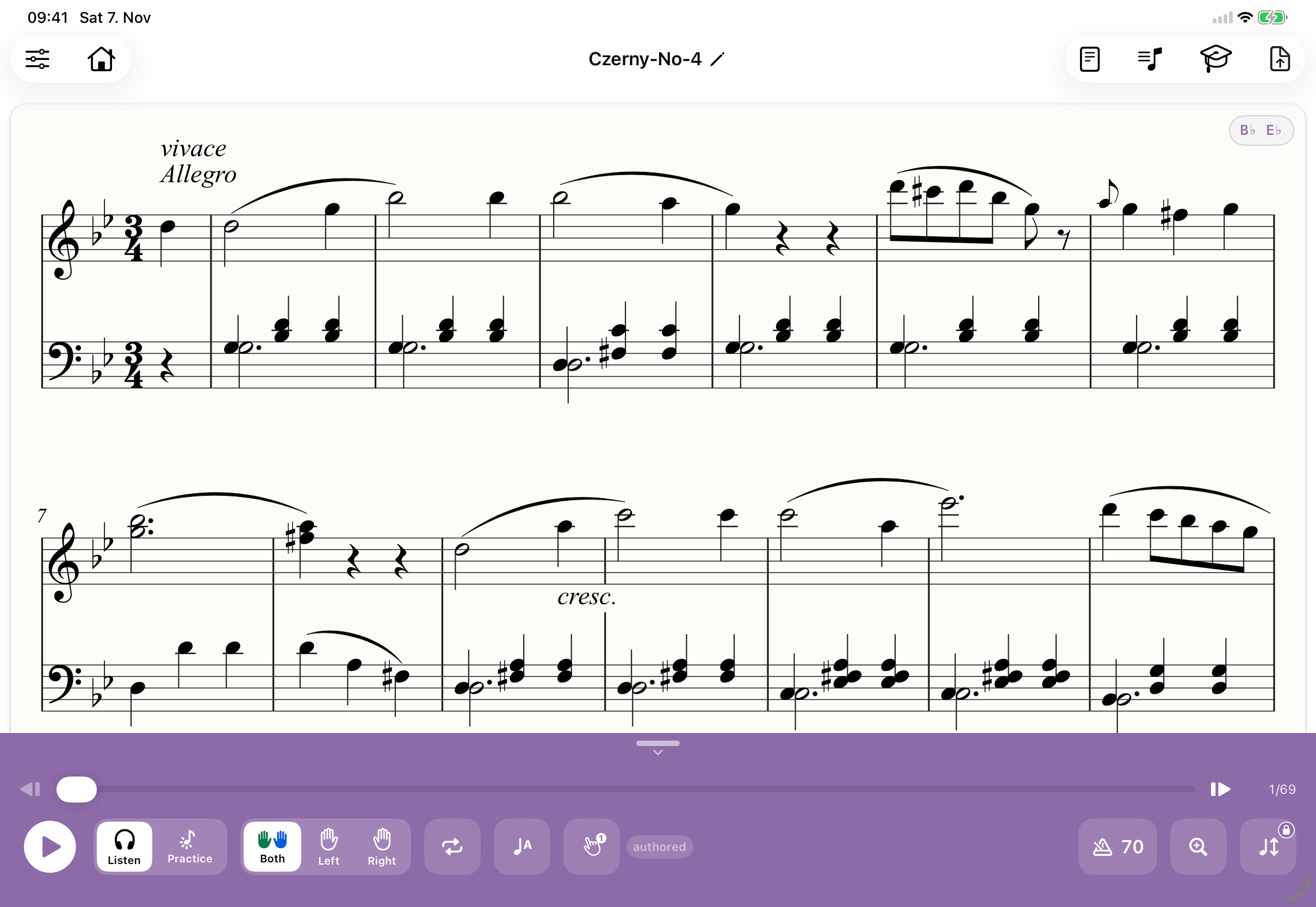
- Start conversion while connected to the internet. Klavia shows Reading your sheet music, with a Cancel button, while it reads the selected pages. If conversion succeeds, the score opens and is saved to your library automatically. Recognition can make mistakes. Compare the result with the original; if it is inaccurate, try a clearer PDF or export a MusicXML version from your notation software.
If an error appears, note the code shown in the app. You can try again; if the problem continues, contact Klavia support and include the code.
4. Scan a printed page with the camera
No file? Scan the printed page instead. The Scan with camera card appears on devices that have a camera.
- Open Add and tap Open camera under Scan with camera.
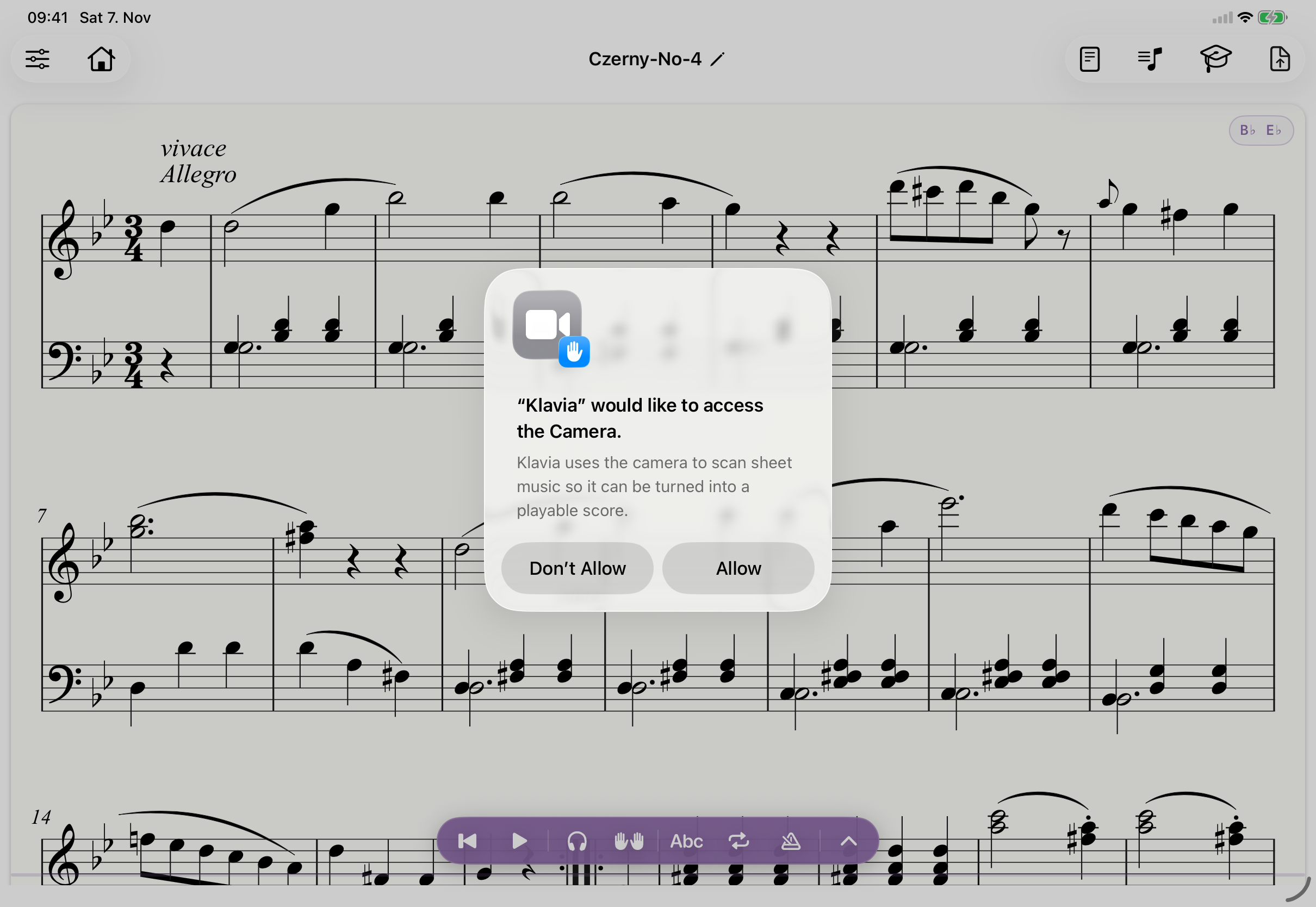
- The first time, iOS asks whether Klavia may use the camera. Tap Allow. If camera access is off, Klavia says so and offers Open Settings.
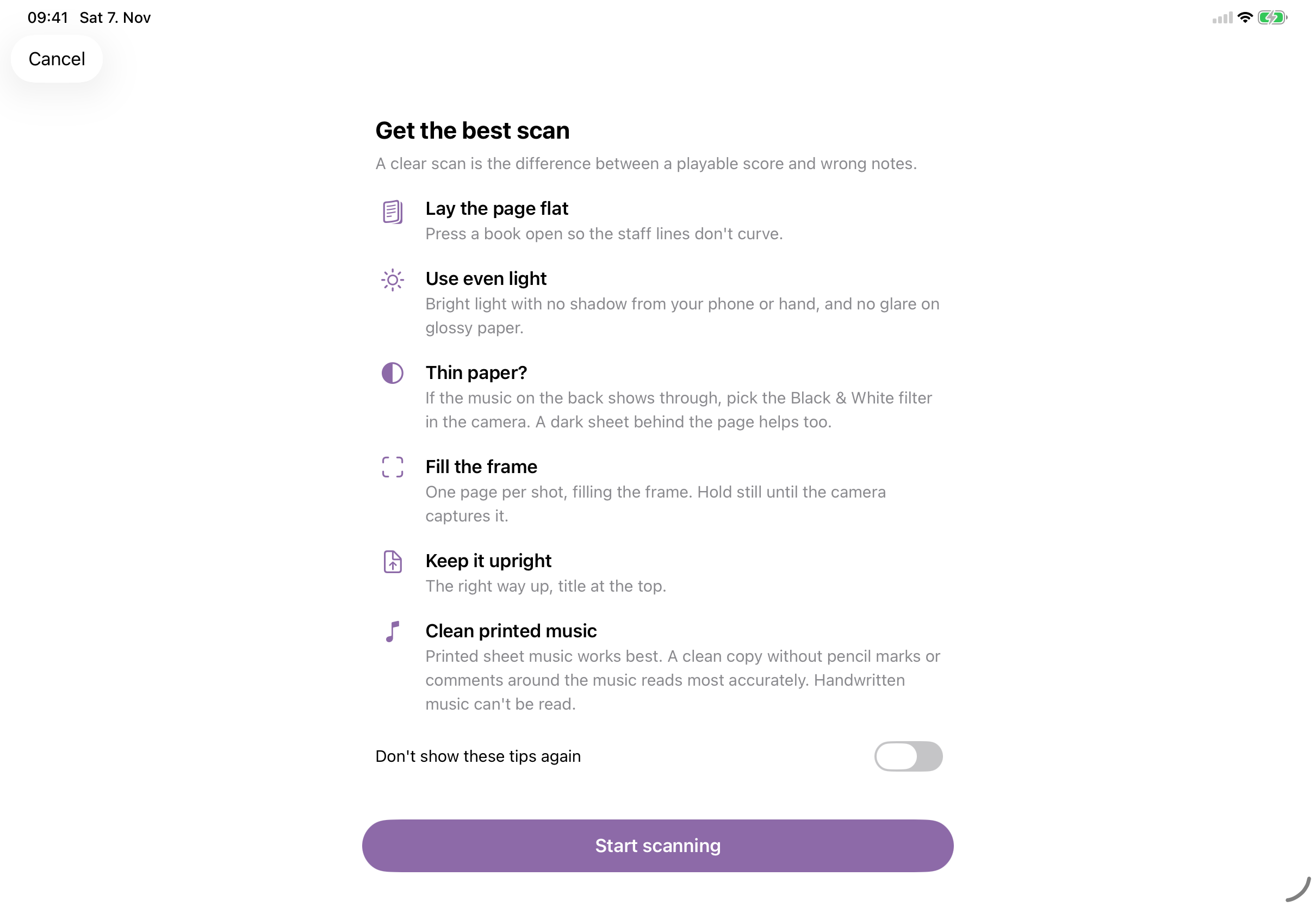
- Read Get the best scan and tap Start scanning. Lay the page flat, use even light and fill the frame; handwritten music can’t be read. Switch on Don’t show these tips again to go straight to the camera next time.
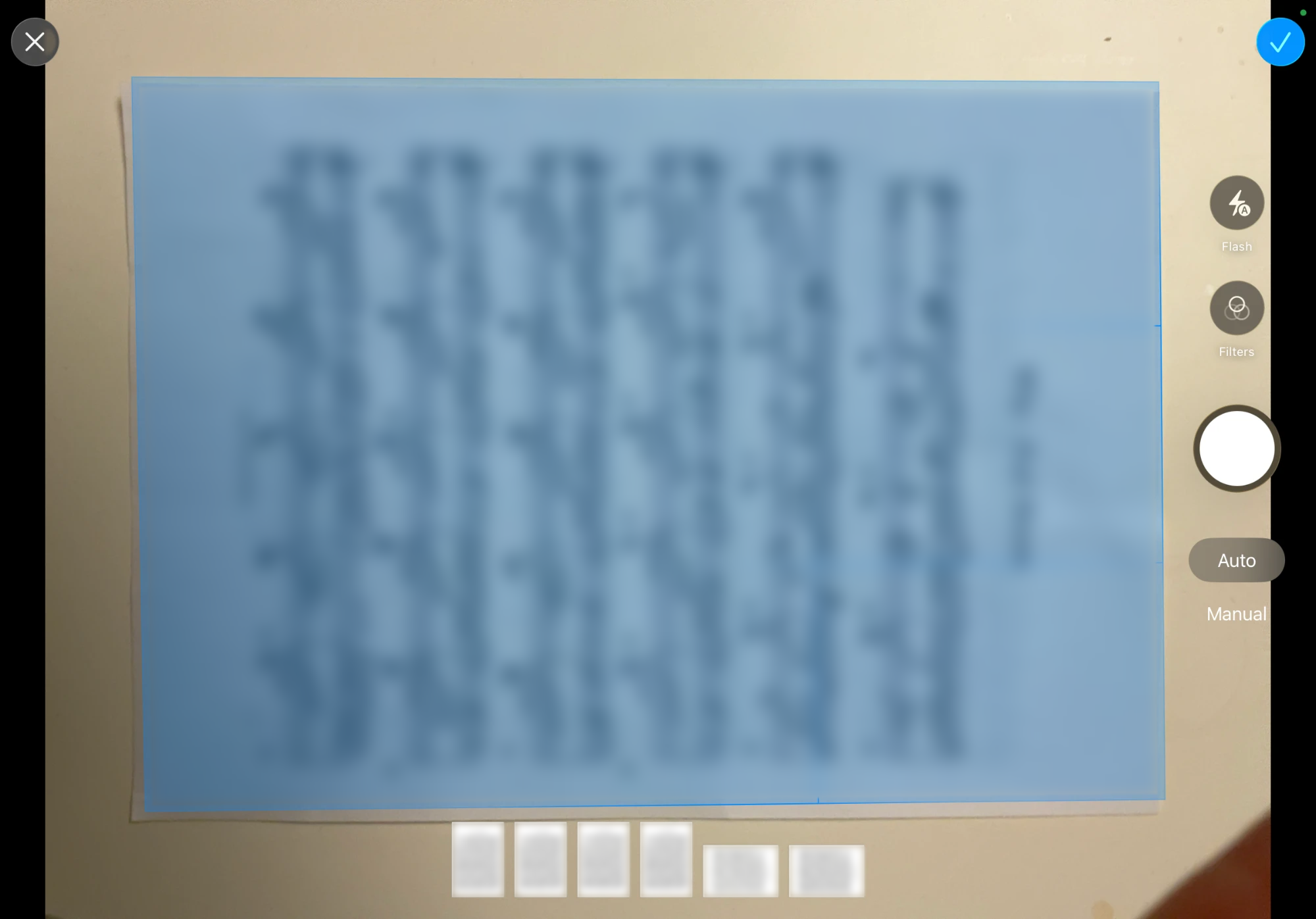
- Hold the camera over the page. Apple’s scanner finds the page edges, straightens and crops the page, and captures it when you hold still; the thumbnails along the bottom show the pages captured so far. Scan each page of the piece in order, then tap the check mark.
- In Review scan, Klavia checks each page and shows Looks good or what to fix, such as blurry, tilted or too dark. Use Retake, Delete page, Move earlier, Move later or Add pages, then tap Convert.
- Stay connected to the internet. Each page takes about 1–2 minutes to convert, and one scan holds up to 6 pages. When it finishes, the score opens and is saved to your library. Recognition can make mistakes, especially on a poor scan: compare the result with your page and retake any page Klavia flagged.
5. Find the score in your library
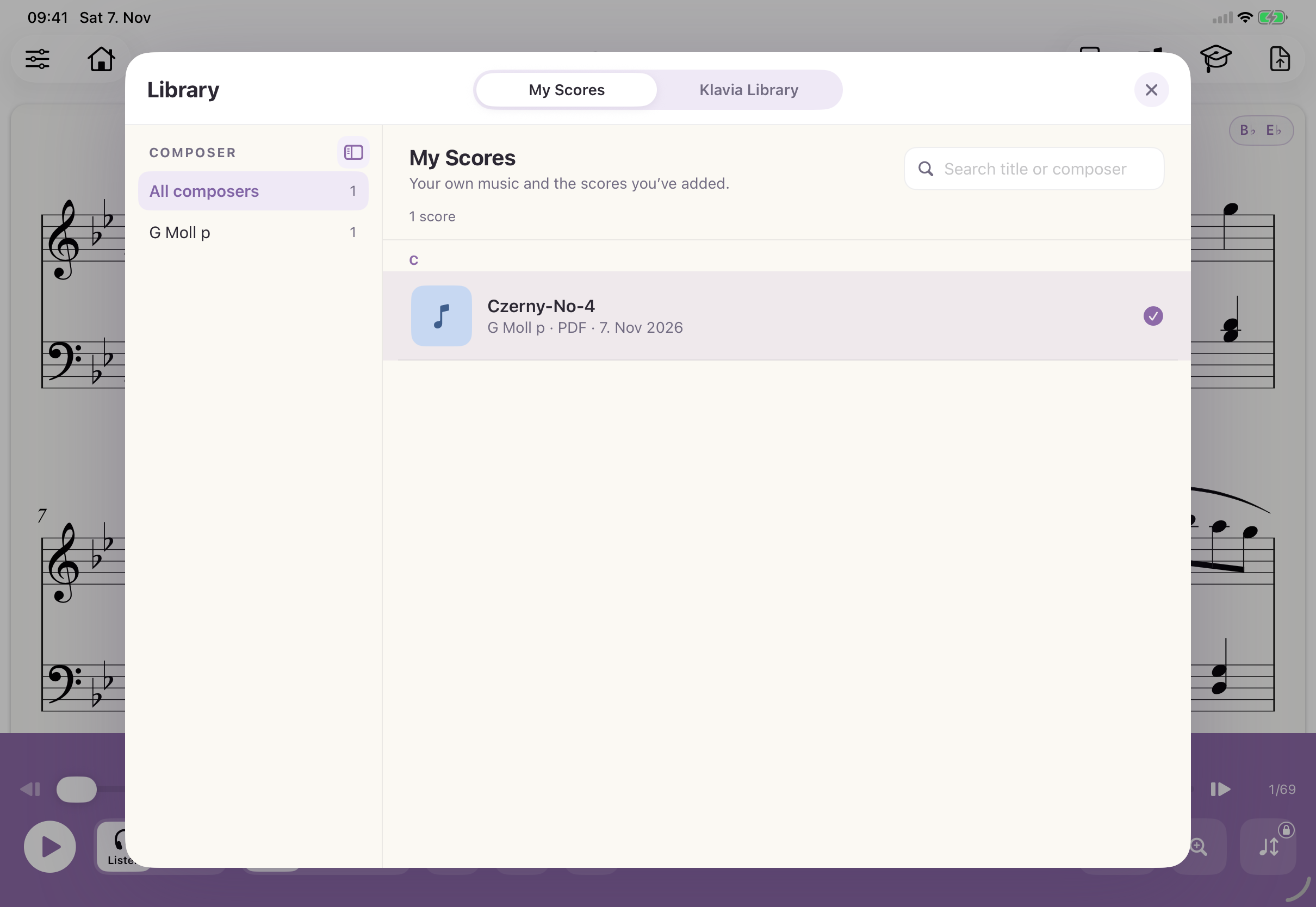
Imported scores are saved automatically. Open the library from the toolbar at the top right, tap My Scores, and choose your piece. The Klavia Library tab is the catalogue, not your imported files. Use the search field if your list is long.
Questions about importing
Which MusicXML files can I import? ▾
.musicxml or .xml, or compressed MusicXML ending in .mxl. An arbitrary XML file is not necessarily a MusicXML score.Does PDF import need internet? ▾
Where can I find the imported score? ▾
Which pages can I scan with the camera? ▾
Why is my file greyed out in the Files picker? ▾
.musicxml, .xml, .mxl) under MusicXML, and PDF files under PDF. Other files appear greyed out. Open Add again and choose the card that matches your file.