 Klavia
A sheet music reader app for iPad that listens to your MIDI keyboard.
Most people searching for a sheet music reader app for iPad with MIDI keyboard support want two things at once: a clean digital music stand for the scores they already own, and an app that can tell whether they actually played the right note. Klavia is built to be both.
Import a PDF or MusicXML file, read it as properly engraved notation, then plug in a MIDI keyboard over USB or Bluetooth and play along while the app follows you.
First, as a plain sheet music reader
Before any of the MIDI features matter, the reading has to be good. An iPad on a music stand is only better than paper if the notation is at least as legible.
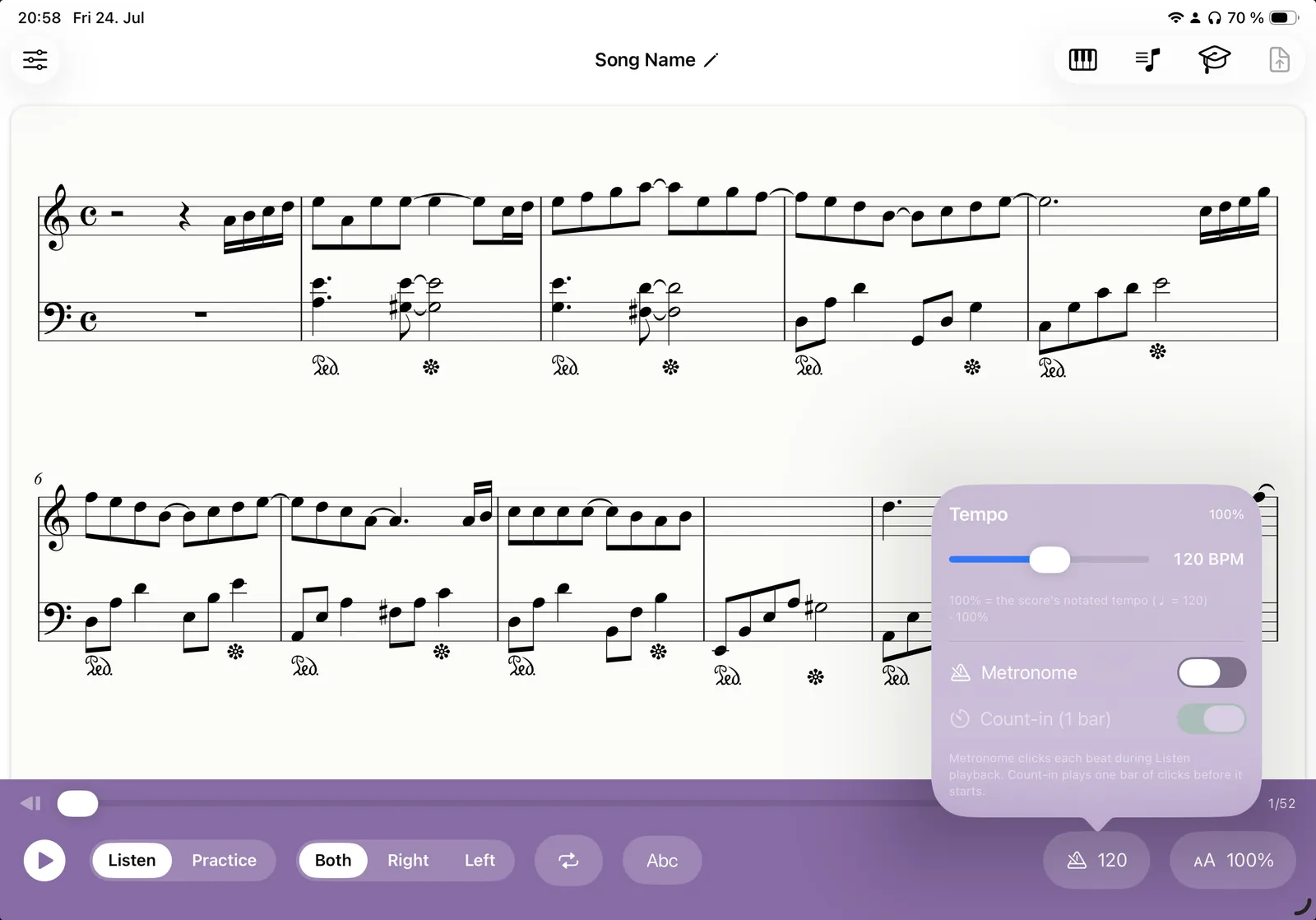
- Real engraving, not a photo. Imported PDFs are recognised and re-engraved as vector notation with crisp beams, clefs and key signatures at any zoom level, rather than a scan that goes soft when you pinch in.
- Reflow to your screen. The score lays itself out for the device you are holding, in portrait or landscape, in light mode or dark.
- Auto-scroll that follows the music. During playback a cursor tracks the current note and the page moves itself, so both hands stay on the keys.
- Your library, offline. Everything you import is saved on-device and stays readable with no connection.
Connecting a MIDI keyboard to an iPad
Klavia accepts MIDI input two ways, and both are standard Core MIDI connections. Nothing proprietary, no extra app in between.
Over USB
Most digital pianos and controllers have a USB-B "to host" port or a plain USB-C socket. On a USB-C iPad, a USB-C to USB-B cable is usually all you need. On an older Lightning iPad you will want the Lightning to USB Camera Adapter, ideally the version with a power passthrough port, since some keyboards draw more current than the iPad likes to give.
Over Bluetooth
If your instrument advertises "Bluetooth MIDI", pair it from inside a Bluetooth MIDI-capable app rather than from iOS Settings: Bluetooth MIDI devices do not appear in the normal Settings list. Bluetooth is tidier; USB has slightly lower latency. For practice, either is fine.
Reading and playing at the same time
Once the keyboard is connected, the score stops being a document and starts being a practice partner:
- Wait mode. The next note glows and the score simply waits. Play it and the cursor advances. There is no tempo to fall behind, which is what makes it usable on a piece you have never played before.
- Hands separately. Practise the left hand alone against the app's right hand, or the other way round. The score re-engraves to a single staff so you are not reading around the part you are not playing.
- Loop a passage. Drag across a few bars and play them over until they are even.
- Set the tempo. 100% is the score's own marking; slow it down, add a click, then work back up.
- Note-name labels. Useful when you are sight-reading a new piece, and easy to switch off once you are not.
No keyboard? The microphone can stand in
If you practise on an acoustic piano, or your digital piano predates MIDI, your device's microphone can pick up single-note melodies for wait-mode practice. It is not as precise as MIDI (chords and pedal are the limits), but for a right-hand melody it works, and it needs no cables at all.
And if you have no instrument in front of you right now, everything except play-along still works: read, listen, loop, label, follow along. Plenty of useful practice happens away from the keys.
Questions
Which MIDI keyboards work with Klavia on iPad? ▾
What cable do I need for a USB-C iPad? ▾
Can I read my own PDF scores, or only a built-in library? ▾
Does the app follow me, or do I have to keep up with it? ▾
Does it work offline? ▾
Put your scores on the stand
Download Klavia from the App Store, import a score, and plug in your keyboard.
Download on the App Store iPhone and iPad, iOS 16 or later. Android is planned after the iOS release.